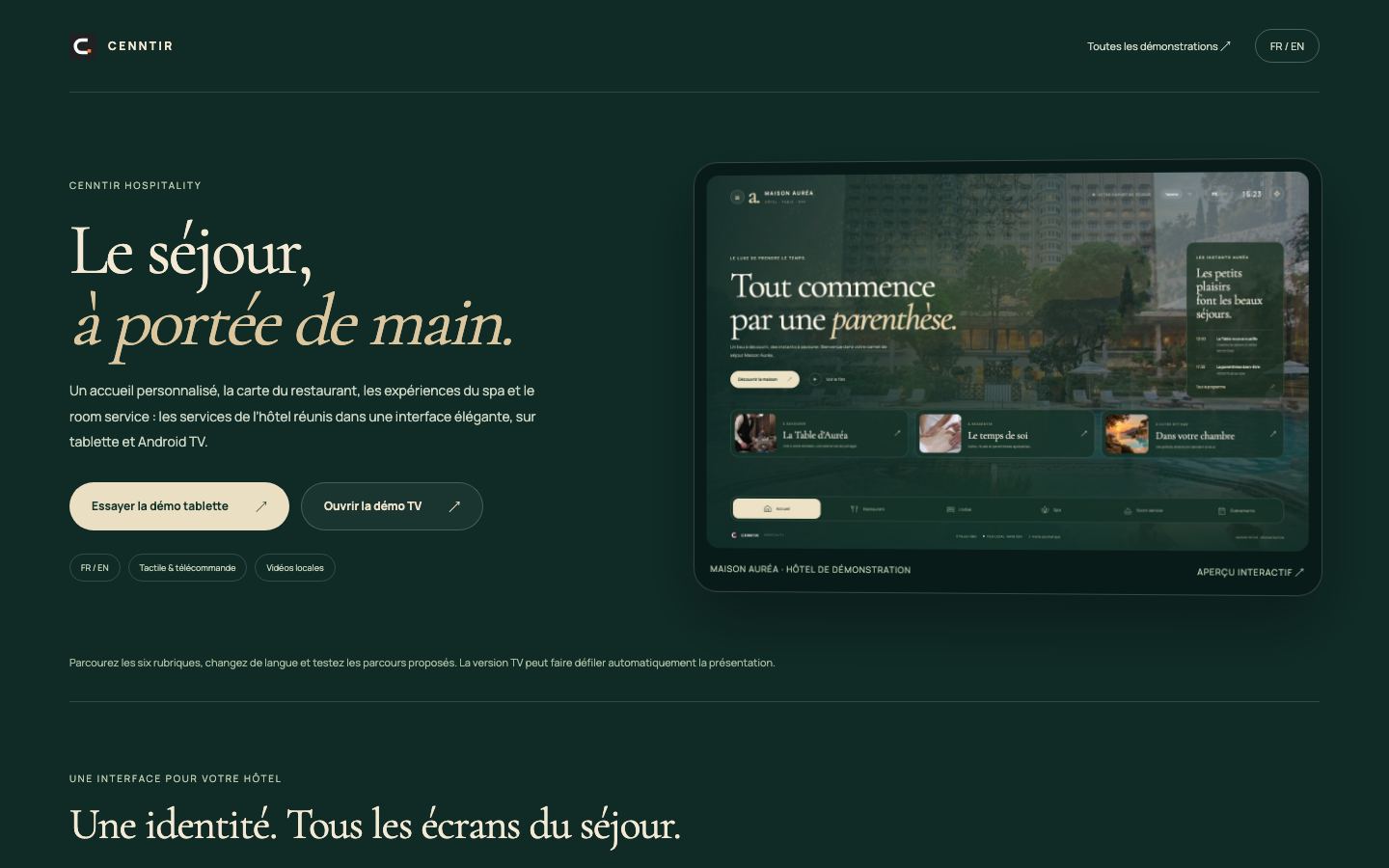
Maison Auréa
Welcome, restaurant, spa, room service and events for a fictional hotel, on a tablet and on a TV screen, in English and French.
Open the demo ↗ (new tab)
CENNTIR connects the computers, screens, rooms and buildings of a site to a single console. The AI assistant diagnoses and proposes; it only acts within the permissions you grant it, and every action is written to the log. Your users, for their part, get interfaces designed for their job.
Animated example: an AI assistant restarts a service on a workstation in the fleet, within the permissions granted to its key.
The print service on workstation ACC-12 has stopped. Restart it.
Done: the print service is running again on ACC-12.
> Restart-Service Spooler✓ Spooler: runningFive contexts, one technical foundation. Each page shows what works today and what gets qualified on your site.
A monitored fleet, logged interventions, a network audit with an agreed scope.
See the sector →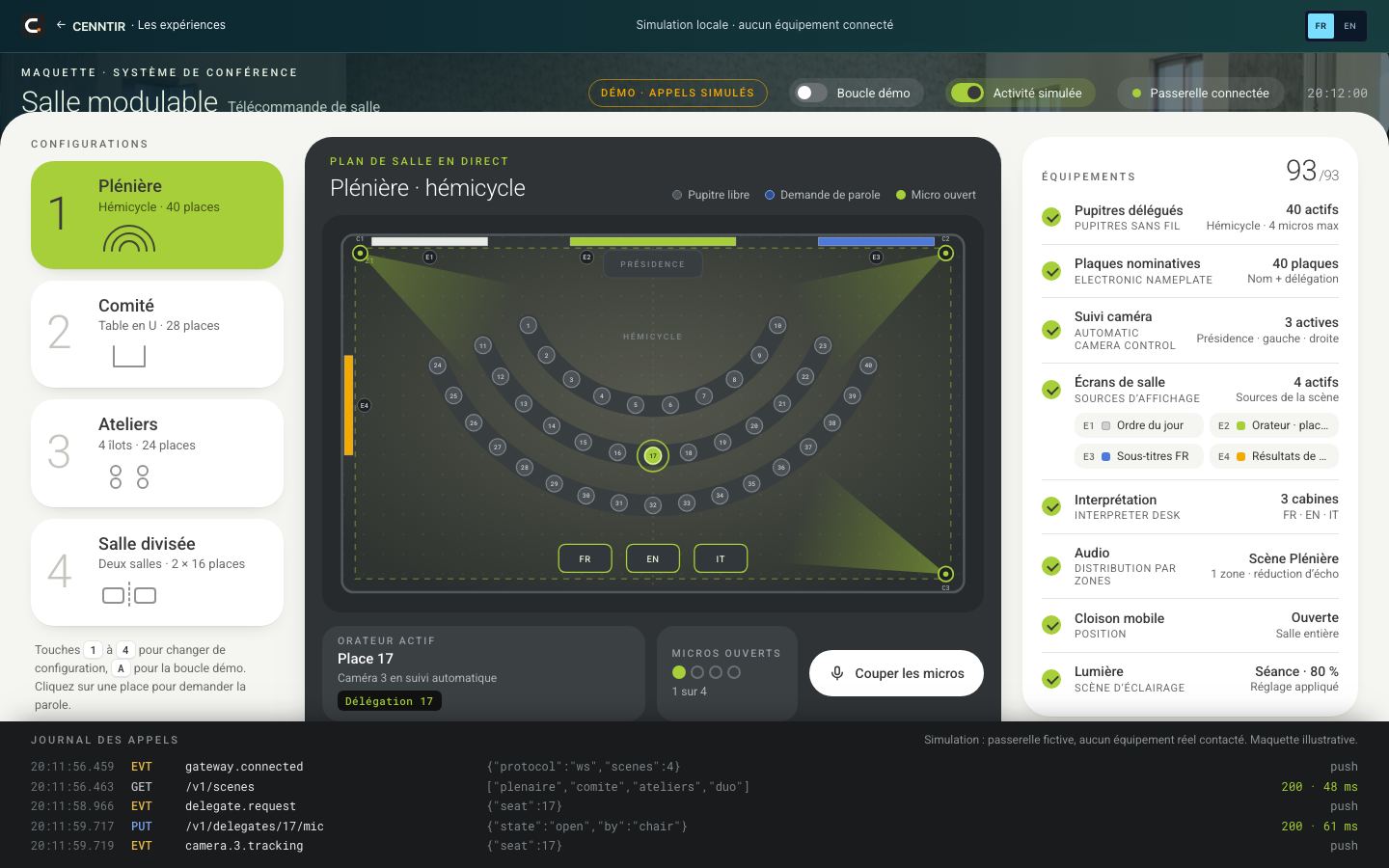
Rooms ready before the meeting, monitored across several sites.
See the sector →
The in-room screen and the tablet become your welcome desk.
See the sector →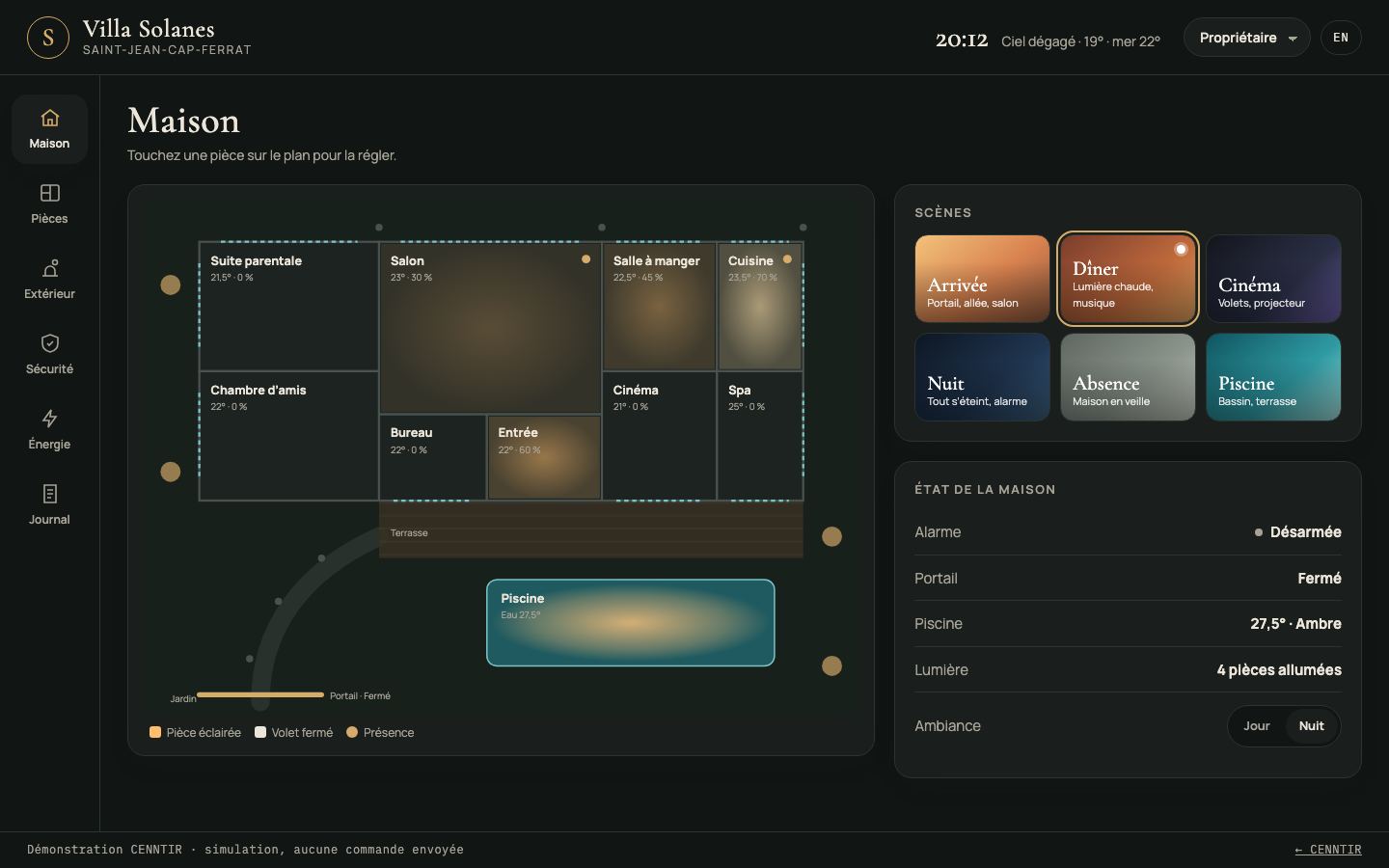
An interface for every guest, oversight for the crew.
See the sector →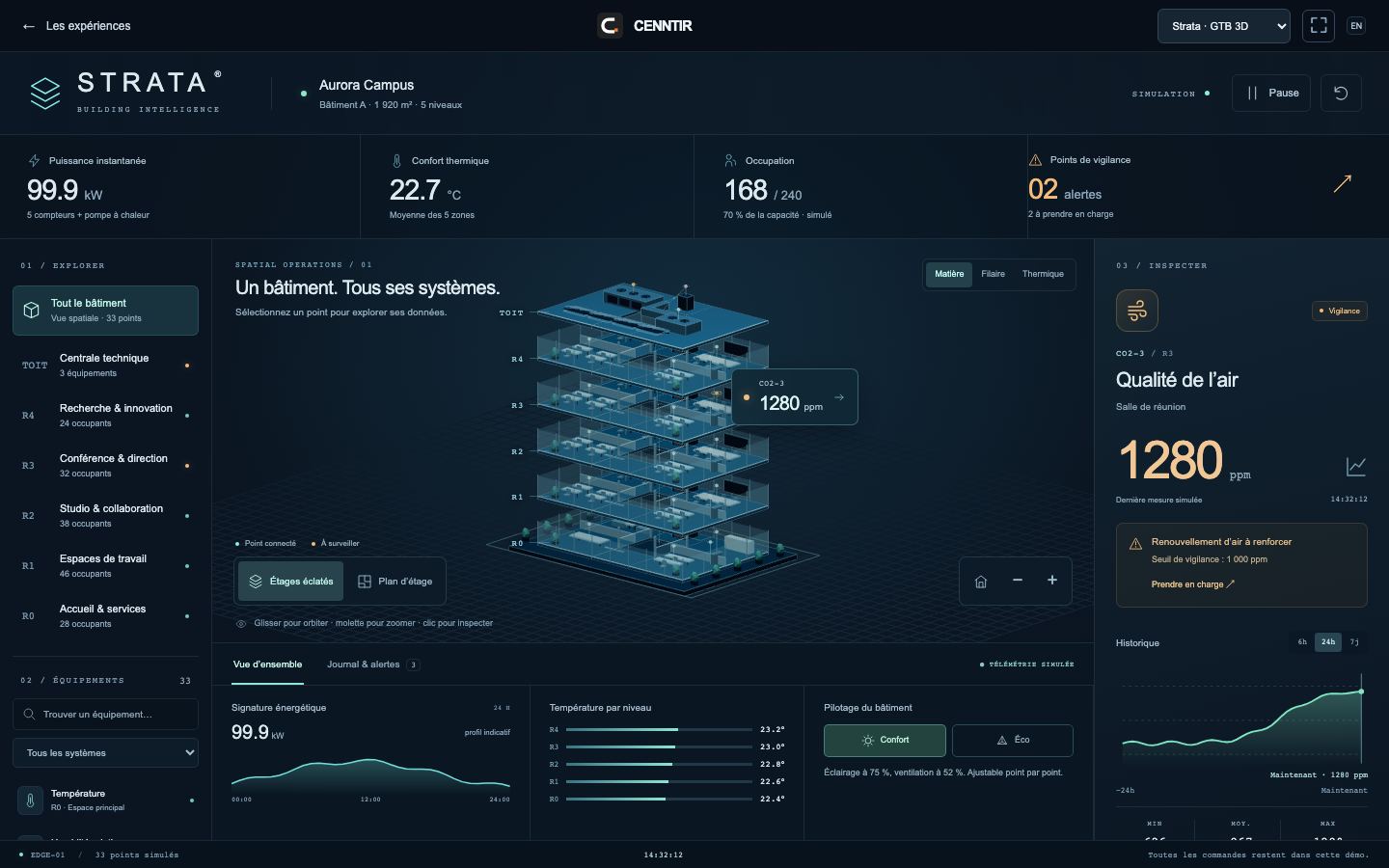
Make readings and equipment understandable, one use case at a time.
See the sector →A lightweight agent on each machine, a hub that enforces permissions and keeps the log, and interfaces for the people who use the place.
Know what is happening on site without being there.
Fix things remotely, within the limits you set.
Give users an interface made for them.
Every capability states its level of evidence. We do not promise universal compatibility: we qualify your hardware during a pilot.
| Hardware | Level of evidence | What works |
|---|---|---|
| Windows 10 and 11 computers | Available | Agent 0.8.5: commands, files, screen and Office. |
| Windows 7 SP1 | Available | Dedicated binary, same core capabilities as Windows 10 and 11. |
| Mac (Apple Silicon) | Available | Agent 0.8.5: commands, files and screen. |
| Linux servers and workstations, x86 and ARM | Available | Agent 0.8.5: commands and files, no on-screen actions. |
| Android phones, tablets and TV sticks | Available | App 0.8.5 running on Xiaomi Mi TV sticks (Android 14), a Lenovo tablet and a Redmi phone, October 2026. |
| KVM-over-IP boxes | Available | Keyboard, screen and mouse of a computer remotely, including at boot, and a network audit of the site. Running on GL.iNet Comet; JetKVM partially validated; PiKVM to be qualified. Input injection disabled by default. |
| ESP32-S3 boards | Available | Sensors, pins, e-paper and LCD screens; USB installation, signed updates over Wi-Fi. In service since October 2026. |
| AV equipment and BMS | Proven on emulator | Some device profiles are proven on emulator, others are still under study; each on-site integration is validated through a pilot. |
| iPhone and iPad | Trial | App in testing, distributed outside the App Store. |
Available: released and documented version. Tested on specific hardware: tried on precise models, to be requalified for another model. Proven on emulator: works against a faithful simulator, not yet on real equipment.
We start small, on your hardware, with success criteria written down before rolling out.
Site survey: equipment, network, usage, constraints. You receive a written assessment.
One workstation, one room or one screen, with acceptance criteria agreed together.
Agent installation, permissions, interfaces and training for your team.
Monitoring, updates and logged interventions, with your team or your integrator.
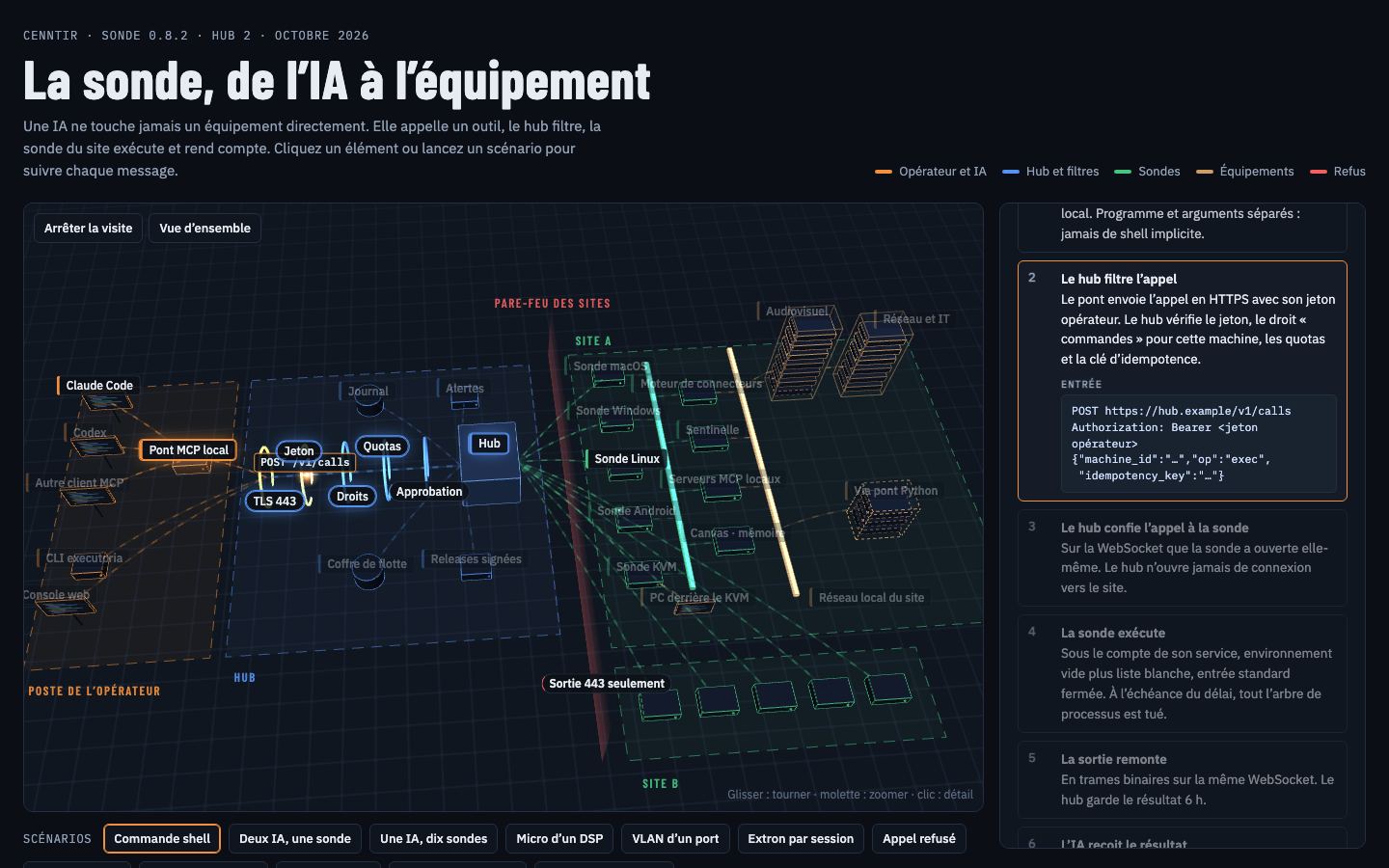
Agents connect out to the hub: no port to open on site. The hub enforces permissions, handles the approvals set by the policy and keeps the log.
Read the security page →Every action and every tool is enabled machine by machine.
Depending on the policy, some equipment write operations wait for approval, with a one-time code.
Who, what, when, on which machine; CSV export, itself logged.
The connector engine resolves equipment passwords on the agent and masks them in its results and log.
All of them open in the browser. They are simulations unless stated otherwise: no command is sent to any equipment.
Welcome, restaurant, spa, room service and events for a fictional hotel, on a tablet and on a TV screen, in English and French.
Open the demo ↗ (new tab)
A conference room that switches between four layouts: live seating plan, requests to speak, microphones, camera presets and volume, with a demo loop.
Open the demo ↗ (new tab)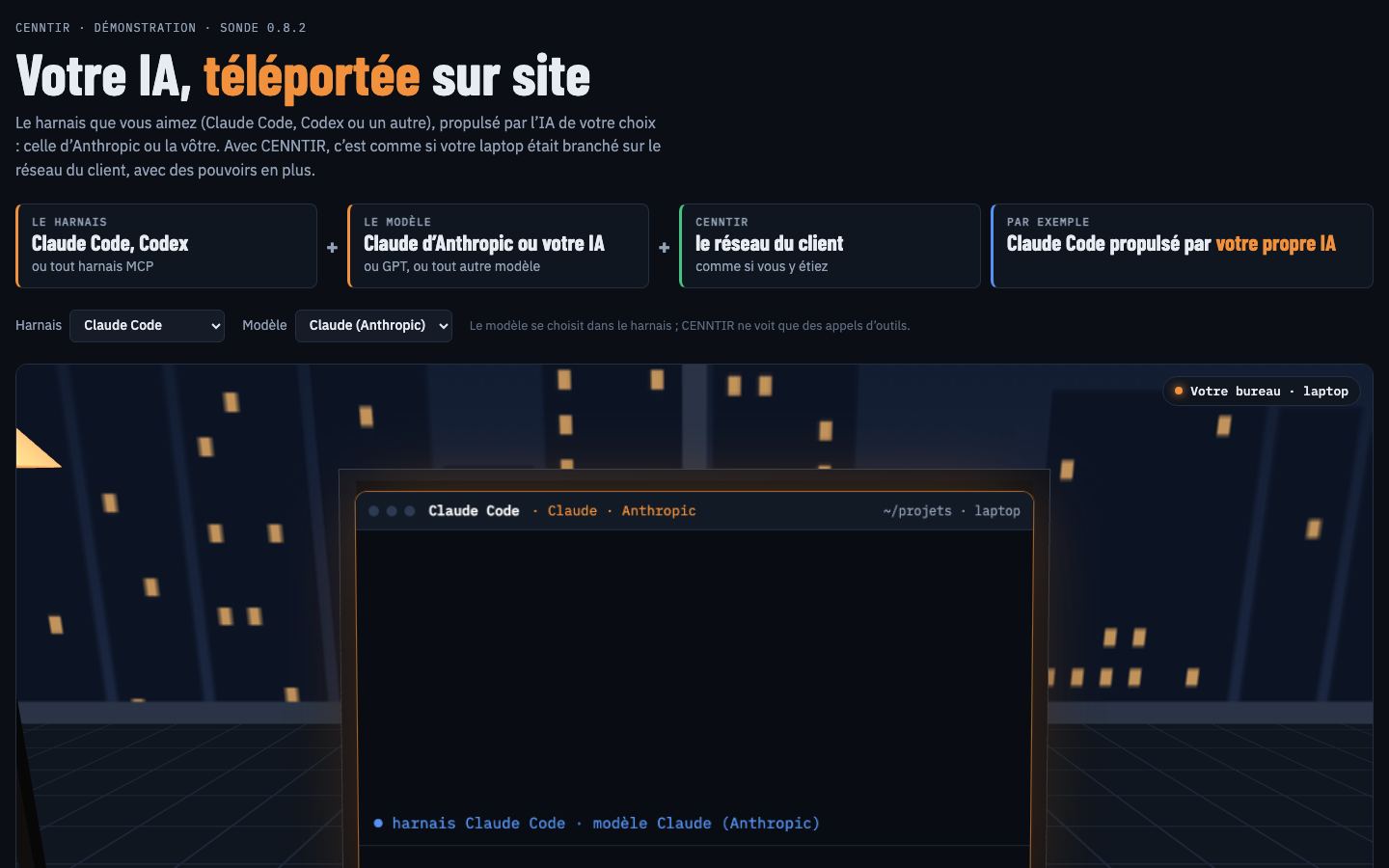
From the office, the assistant works on a client site’s network through the agent: it diagnoses, acts, then checks.
Open the demo ↗ (new tab)A platform and services to monitor, remotely troubleshoot and equip with custom interfaces the computers, screens, rooms and buildings of a site. An AI assistant diagnoses and proposes within the permissions you grant it, and every action is written to the log.
No. Each agent opens an outbound encrypted connection to the hub on port 443. Corporate HTTP proxies (CONNECT method) are not supported: direct outbound access to the hub must be allowed.
Windows 10 and 11, macOS on Apple Silicon, Linux x86 and ARM, and Android (phones, tablets, TV) are available. Windows 7, KVM-over-IP boxes (GL.iNet Comet) and ESP32-S3 boards are available too; iPhone and iPad are in trial.
It only acts within the permissions granted to its key, machine by machine and tool by tool. Depending on the policy, some equipment write operations require approval in the console. Every call is written to the audit log.
No. Links are encrypted with TLS, but the hub is the control point: it sees the traffic in order to enforce permissions, approvals and the log.
With a one-day audit or a pilot on one workstation, one room or one screen, with acceptance criteria agreed together.
Describe your site: we propose a first scope to test on your hardware.